
The Product Categories Element will allow you to showcase your categories in a display where you can easily style and customize their appearance.
Content Tab
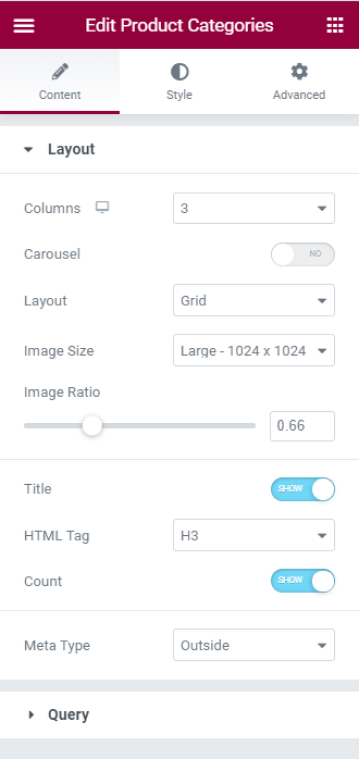
Layout
- Columns - Set the number of columns you want your categories to display
- Carousel - Choose to display your categories in a carousel
- Layout - Choose a layout to either be Grid, Masonry, or Metro
- Image Size - Set an image size for the categories
- Image Ratio - Set an image ratio for the categories
- Title - Choose to either display the title of the category or not
- HTML Tag - Set an HTML tag for the title of the category
- Count - Switch the handle on to show the court of your categories
- Meta Type - Decide to show the Meta either Inside or Outside
Query
- Source - Select the source from where the element will extract content either Show All or Manual Selection
- Hide Empty - Switch the handle on to hide categories with no product in them
- Order By - Order your categories either by Name, Slug, Description, or Count
- Order - Choose to show your categories in either ascending or descending order
Style Tab
Layout
- Columns Gap - Set the gap between the columns
- Row Gap - Set the gap between the rows
- Initial Animation - Choose an animation for your categories from the dropdown menu and also tweak the respective setting
- Alignment - Align your categories either Left, Center, or Right
- Offset - Use this option to skip categories
Box
- Border Width - Set a width for the border of the categories
- Border Radius - Set the border-radius values to make the edges of the box rounder
- Padding - Add padding values around the box
- Content Padding - Add padding values around the content of the box
Normal | Hover
- Box Shadow - Choose to add a shadow around the box
- Background Color - Set a background color for the box
- Border Color - Set a color for the border
Image
- Border Radius - Set the border-radius to make your images rounder
- Spacing - Set the spacing between the image and the category
Normal | Hover
- CSS Filters - Play around with the CSS filters to edit the images
- Animation - Set an animation for the image that is being hovered
Content
TITLE
- Color - Set a color for the title
- Typography - Tweak the typography options for the title
COUNT
- Color - Set a color for the count
- Typography - Tweak the typography options for the count
- Spacing - Set the spacing between the count and the categories
Set the settings for the Advanced Tab that is appropriate for the element.
