
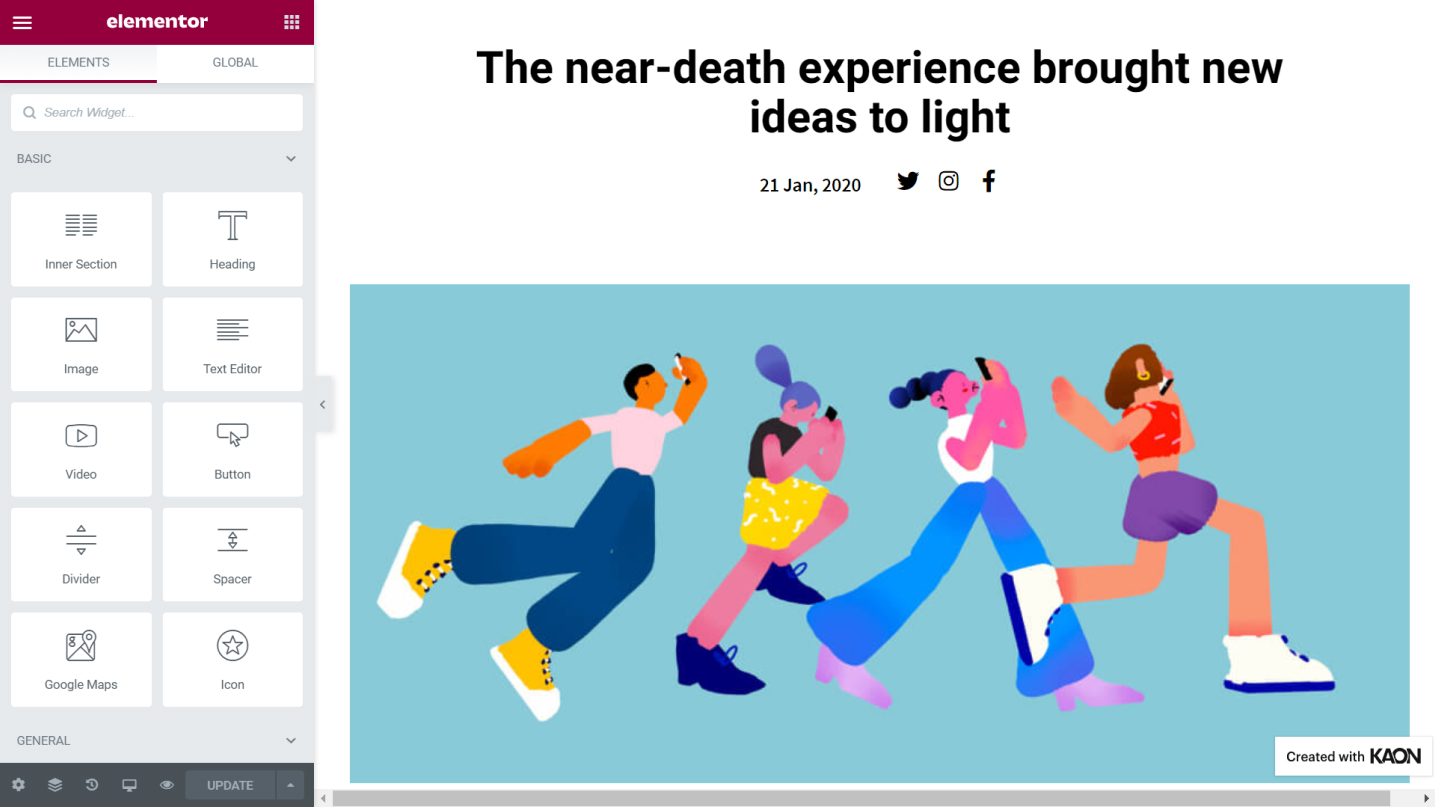
The Featured Image Element will assist you in displaying the featured image for the post. The Featured Image is a Theme Element and is available under the Single Post Template that generates content dynamically.
Content Tab
Image
- Choose Image - Here the element will dynamically produce the featured image set for the post. If you click on the [wrenc icon] you can set a fallback option for when data is missing
- Image Size - Set the image size for the featured image from Thumbnail to Full, or you can put custom values to it
- Alignment - Position the featured image either Left, Center, or Right
- Caption - Set a caption for the featured image, you can add the attached caption or make a custom one
- Link - Have your featured image linked by writing the URL of the page
Style Tab
Image
- Width - Set the width for the featured image
- Max Width - Set the maximum width for the featured image
- Height - Control the height of the featured image
- Opacity - Change the image's opacity
- CSS Filters - COnfigure the featured image's style by tweaking the CSS filters
- Border Type - Set a border for the featured image
- Border Radius - Set the border-radius for the image to make the edges round
- Box Shadow - Choose to add shadow to the featured image
Caption
- Alignment - Set the alignment for the featured image's caption
- Text Color - Set the text color for the caption
- Background Color - Set the background color for the caption
- Typography - Tweak the typography options for the caption
- Text Shadow - Choose to add shadow to the caption
- Spacing - Set the spacing between the image and the caption
Set the settings for the
Advanced Tab that is appropriate for the element.
