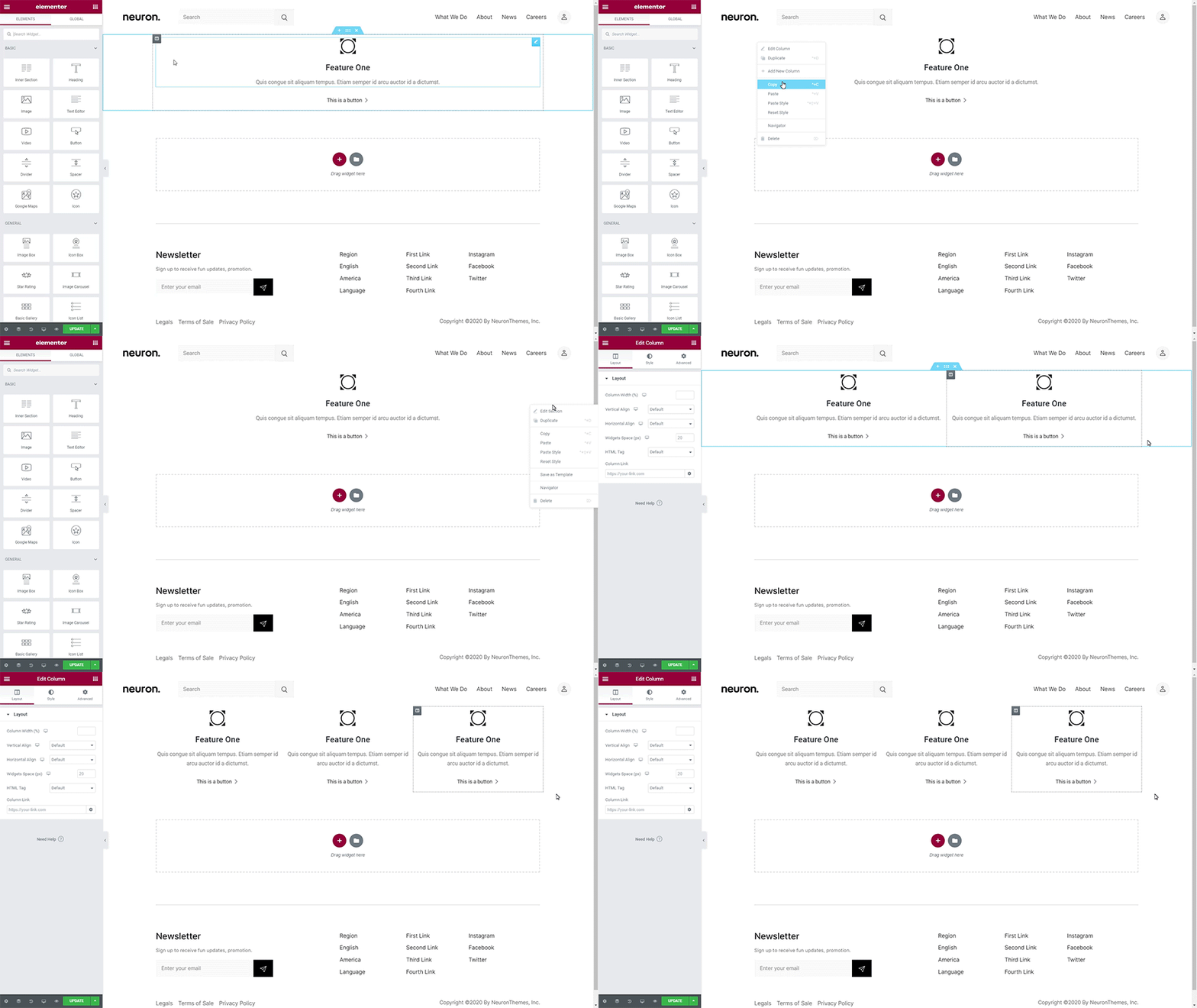
The Copy/Paste feature is one that should stick to your design routine as it will speed up your workflow and streamline your productivity with just a few clicks. Using this feature you can
- Copy and Paste Style
- Copy and Paste entire sections, columns, and elements
Copy and Paste Styles
You can easily copy the style of any section, column, or element and paste it instantly anywhere on the page to inherit the style from the former section/column/element. To do that simply right-click on the section/column/element's handle and select the Copy option. Once you've copied the style click anywhere on the page where you want the same style displayed, right-click on the mouse, and press Paste Style.

Copy and Paste entire sections, column, and elements
If you wish to copy and entire section simply right-click on the section's handle and right-click again press Paste. But if you wish to simplify the press even more you can use shortcuts. Simply CMD / CTRL+C on any element, column, or section, and paste it anywhere on the page with CMD / CTRL +V.