
Pricing tables are especially substantial for WordPress sites that intend to sell courses, packages, or any other service. You would want to make the whole experience more user-friendly and convince them on taking the final step which is buying your product.
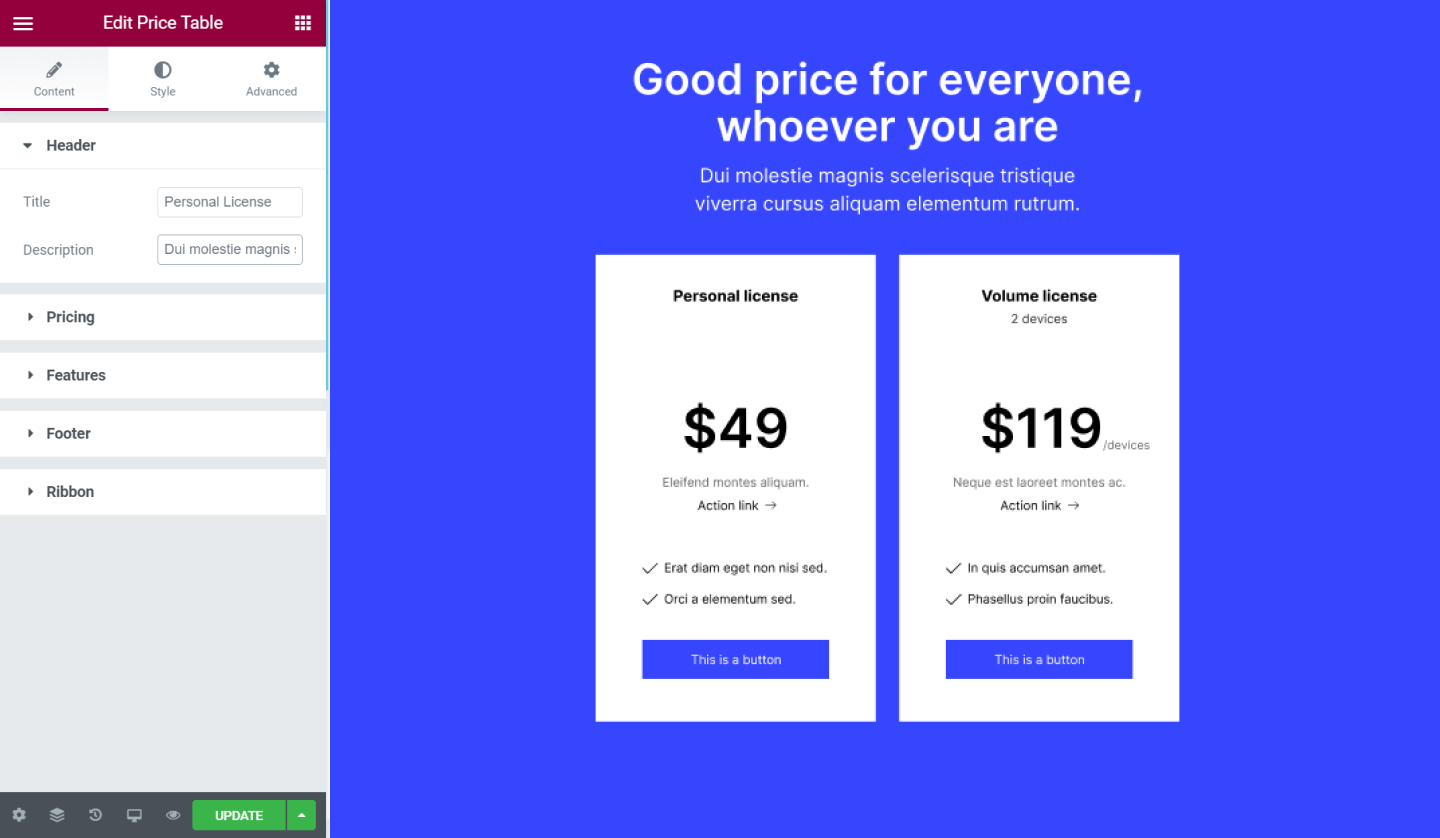
Content Tab
Header
- Title - Here type in the title of the Price Table
- Description - Here type in the description for the Price Table
Pricing
- Currency Symbol - Type in the currency of the product
- Price - Set the price for the item
- Currency Format - Type in the currency format for the item
- Sale - Switch the handle on to show the item on sale. If you choose to leave it on, you can set the original price as well.
- Period - Type in the period of the pricing
Features
You can add one or more items heading to your price table simply click on the Add Item button.
Tip: You can use the [duplicate icon] and the [delete icon] to duplicate or delete items
Item Heading #
- Text - Type in the text for the item heading
- Icon - Choose an icon for the item heading
- Icon Color - Choose a color for the item heading icon
Footer
- Button Text - Type in the text for the footer button
- Link - Type in the URL for the button
- Additional Info - Add additional information for your Price Table
Ribbon
- Visibility - Choose to show or hide the ribbon
- Title - Write down the title for the ribbon
- Position - Select the ribbon position either left or right.
Style Tab
Header
- Background Color - Set the background color for the heading
- Padding - Add padding values for the heading
Title
- Color - Set the color for the title
- Typography - Tweak the typography options for the title
Description
- Color - Set the color for the description
- Typography - Tweak the typography options for the description
Pricing
- Background Color - Set the background color for the pricing
- Padding - Add padding values for the pricing
- Color - Set the color for the price
- Typography - Tweak the typography options for the price
Currency Symbol
- Size - Set the exact size of the currency symbol
- Position - Set the position for the currency symbol either Left or Right
- Vertical Position - Set the vertical position for the currency symbol either Top, Middle, or Bottom
Fractional Part
- Size - Set the exact size for the fractional part of the price
- Vertical Position - Set the vertical position for the fractional part of the price either Top, Middle, or Bottom
Original Price
- Color - Set the color for the original price
- Typography - Tweak the typography options for the original price
- Vertical Position - Set the vertical position for the original either Top, Middle, or Bottom
Period Part
- Color - Set the color for the period of the plan
- Typography - Tweak the typography options for the period of the plan
- Currency Format - Set the currency format Below or Beside the period of the plan
Features
- Background Color - Set the background color for the featured items on the Price Table
- Padding - Add padding values for the featured items on the Price Table
- Color - Set the color for the featured items
- Typography - Tweak the typography options for the featured items
- Alignment - Set the alignment for the featured items either Left, Center, or Right
- Width - Control the exact width for the featured items on the table
- Divider - Choose to have a divider between the featured items
- Color - Set the color for the divider
- Style - Set the style for the divider either Solid, Double, Dotted, Dashed
- Weight - Set the weight of the divider
- Width - Set the width for the divider
- Gap - Set the gap between the featured items
Footer
- Background Color - Set the background color for the footer
- Padding - Add padding values for the footer
Button
- Typography - Tweak the typography options for the button's text
- Text Color - Set the text color for the button
- Background Color - Set the background color for the button
- Border Type - Set a border type for the button. If you choose one of the options available you can set its width and color
- Border Radius - Set the border-radius around the button
- Text Padding - Set some space around the edges of the button's text
Additional Info
- Color - Set the color for the additional info text
- Typography - Tweak the typography options for the additional info text
- Margins - Set the margin space for the additional info text
Ribbon
- Background Color - Set the background color for the text
- Distance - Set the distance of the ribbon on the heading
- Text Color - Set the color for the ribbon's text
- Typography - Tweak the typography options for the ribbon's text
- Box Shadow - Add shadow to the ribbon
Set the settings for the Advanced Tab that is appropriate for the element.
